
Robtronic Media
How to Optimize Merchant Center Before Scaling Google Ads
Use feed errors and product titles as a pre-budget scaling check for your Shopping campaigns.
What’s stopping your store from reaching €100K/month?
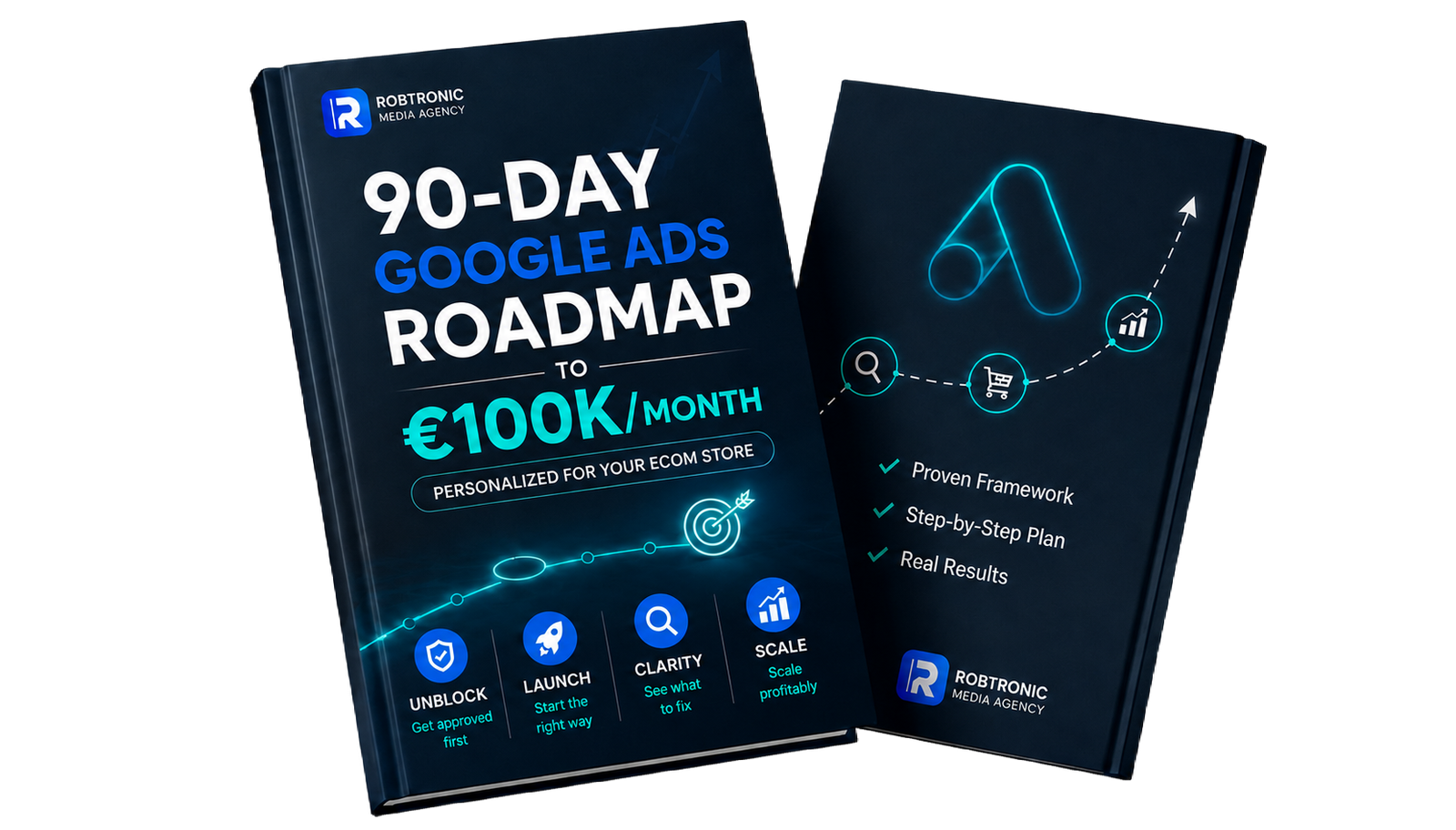
Get your personalized 90-day roadmap. See what to fix first and where your biggest growth opportunity is.
Show Me My Path to €100K/Month →How to Optimize Merchant Center Before Scaling Google Ads
Before you increase your Shopping campaign budgets, optimize Merchant Center before scaling. Your Google Merchant Center product feed deserves as much attention as your Google Ads campaigns because it supplies the product data those campaigns use.
Start by auditing the feed for errors and reviewing every product title. Don’t treat Merchant Center cleanup as an administrative job you can postpone while increasing ad spend. Make it a pre-budget scaling check.
Quick Answer: Why Optimize Merchant Center Before Scaling Google Ads?
Audit your Merchant Center feed before increasing Google Ads budgets. Fix feed errors that affect product eligibility or presentation, then rewrite weak product titles so they describe each item clearly and match relevant searches. Treat this as a scaling gate, not an admin task. Better product data can strengthen Shopping performance, but it does not create a universal feed score or guarantee higher ROAS.
Merchant Center Pre-Scaling Diagnosis
| What you see | Likely issue | First check |
|---|---|---|
| Products with feed errors | Product eligibility or presentation may be limited | Review each reported issue against current product-data requirements |
| Vague or incomplete product titles | Product data may not describe each item clearly | Rewrite titles to identify products accurately and match relevant searches |
| Budget increases before a feed review | Scaling rests on unresolved product-data problems | Audit feed errors and product titles before adding spend |
Why Merchant Center Readiness Is a Scaling Gate
A Google Merchant Center product feed is the structured product data Google uses to understand and serve your store’s products. Feed errors are product-data issues that may limit approval, eligibility or accurate presentation.
That makes the feed part of your advertising foundation. If the underlying product information is incomplete or inaccurate, increasing the campaign budget doesn’t repair it. You’re adding spend while the account still has unresolved product-data inputs.
In the source video, Robin describes Merchant Center as the client’s foundation for success after the feed received attention alongside the campaigns. The work wasn’t limited to bid or budget changes. It also included removing feed errors and optimizing product titles.
For broader setup context, use this Google Merchant Center guide. Here, the narrower decision is whether your feed is ready before you add budget.
Audit Feed Errors and Product Titles Before Raising Your Budget
Open Merchant Center and start with the reported product issues. Check which products are affected, which attribute is causing the issue and whether the problem limits eligibility or changes how the item may appear.
Review each issue against Google’s published Merchant Center product data specification. Product data must follow Google’s formatting requirements, so correct the underlying information rather than merely dismissing an alert.
Then inspect every important product title
A title should identify the item clearly enough for Google and a potential customer to understand what you sell. Start with titles that are vague, incomplete or inconsistent with the product page.
As a practical application of Robin’s lesson, use this short review:
- Check that the title accurately identifies the product.
- Add relevant details that distinguish the item.
- Remove wording that doesn’t describe the actual product.
- Make sure the feed title and landing page don’t contradict each other.
Once the priority feed issues are corrected, you can move into wider campaign work using these steps to optimize Google Shopping ads.
How Can You Tell Whether the Product Feed Is Ready to Scale?
Treat the feed as ready for the next scaling decision when you’ve reviewed the reported errors, corrected the applicable product-data problems and checked the titles of the products you plan to advertise.
You’re not looking for a universal Merchant Center quality score. Merchant Center does not have one feed-quality number that automatically raises Google Ads Quality Score. Better product data can instead improve product eligibility, relevance and Shopping performance.
After the corrections are processed, check the affected products’ status in your account. Make sure their information is presented accurately and that they are eligible for the features you intend to use. Then evaluate campaign performance before making further budget changes.
Feed readiness is one part of controlled growth, not proof that every campaign should immediately receive more money. Campaign structure, measurement and budget decisions still matter. A defined Google Ads scaling system can help you handle those next decisions.
The Common Mistake: Cranking Up Budget Around a Weak Feed
The mistake Robin wants you to avoid is ignoring Merchant Center errors and just cranking up the budget. More spend doesn’t correct vague titles, missing information or unresolved eligibility problems.
Don’t choose between feed work and campaign work as if only one matters. Give both proper attention before you call the account ready to scale.
Robin’s pre-scaling rule: Resolve the feed errors and review the product titles before increasing spend. Better inputs can support stronger Shopping performance, but they don’t guarantee a higher ROAS or a competitive advantage.
Source Video and the Two-Week Onboarding Example
In the source video, Robin reports that a newly onboarded client began scaling within two weeks after work on the Google Ads campaigns, product-title optimization and feed-error cleanup. That is one reported outcome, not a promise that every store can scale within the same period.
The outcome shouldn’t be attributed solely to Merchant Center. Campaign work and feed work happened together. The transferable lesson is the order of operations: inspect the product-data foundation before relying on additional budget.
Watch Robin’s Merchant Center lesson on YouTube.
Source and editorial scope
This article is based on a YouTube lesson by Robin Tesselaar of Robtronic Media and expands the lesson into a practical ecommerce Google Ads guide. The diagnostic table, checklist and technical clarification are editorial applications of that lesson.
Optimize Merchant Center Before Scaling: Final Check
To optimize Merchant Center before scaling, check the feed errors first, correct the affected product data and review every important title. Only then decide whether campaign performance supports a controlled budget increase.
Audit the feed before adding spend. Make Merchant Center part of the scaling decision, not a separate admin task that gets ignored.
Scale Roadmap
Find Your Biggest Growth Leak and Scale With Control
Sign up first, then you’ll be routed to the right roadmap for identifying what to fix before putting more budget into Google Ads.
Sign Up for My Scale RoadmapNot Subscribed yet?
Join My Free E-Commerce Knowledge Center to Boost Your Online Store's Sales & Profits.
- Free Knowledge for Guarenteed More Sales & Profits
- Incl. Checklists, E-books, Templates, Tutorials, 75+ Video’s, Special Discounts E-Commerce Software and many more
- 100% Free & Direct Access
- 5+ Years E-Com Experience
Get Your Personalized 90-Day Google Ads Roadmap to €100K/month
Answer 5 quick questions and see the next moves your e-commerce store needs to grow with Google Ads.
Know what to fix first. Stop guessing. Get a clear next-step plan to grow with Google Ads without killing your profit.
Free. Personalized for your store. Takes 2 minutes.
See what is holding your store back
Get your exact next steps
Built from 220+ e-commerce stores
Done for you Ads Management
Ready to scale your revenue & profits using Google Ads?
Curious what that could mean for you? Book a call using the button below.