If you’re facing the Merchant Center misrepresentation error, chances are high you already invested a lot of time trying to fix it. You changed settings, updated pages, and requested reviews, but you still get rejected or ignored.
That’s exactly why this page exists.
Google Merchant Center changes fast. What worked a few months ago can fail today, because Google keeps updating its checks. This guide follows the same workflow shown in the video, using the newest 2026 approach to get a higher approval rate with less wasted time.
Video Description
In this video, Robin explains the newest 2026 workflow to fix the Google Merchant Center misrepresentation error. The old support.google.com review path often leads to automated replies now, so the focus is on the in-account ID check, matching details across Google systems, then requesting a new review.
Video Takeaways
- The old support.google.com review method often fails today, because responses are automated.
- The fastest 2026 fix happens inside Merchant Center, via the ID check link.
- Submit your passport or ID, a utility bill, and company registration details, then disagree and request a review.
- If it fails, it is usually a mismatch across Merchant Center, Google Ads, and Payments, so resubmit with matching details.
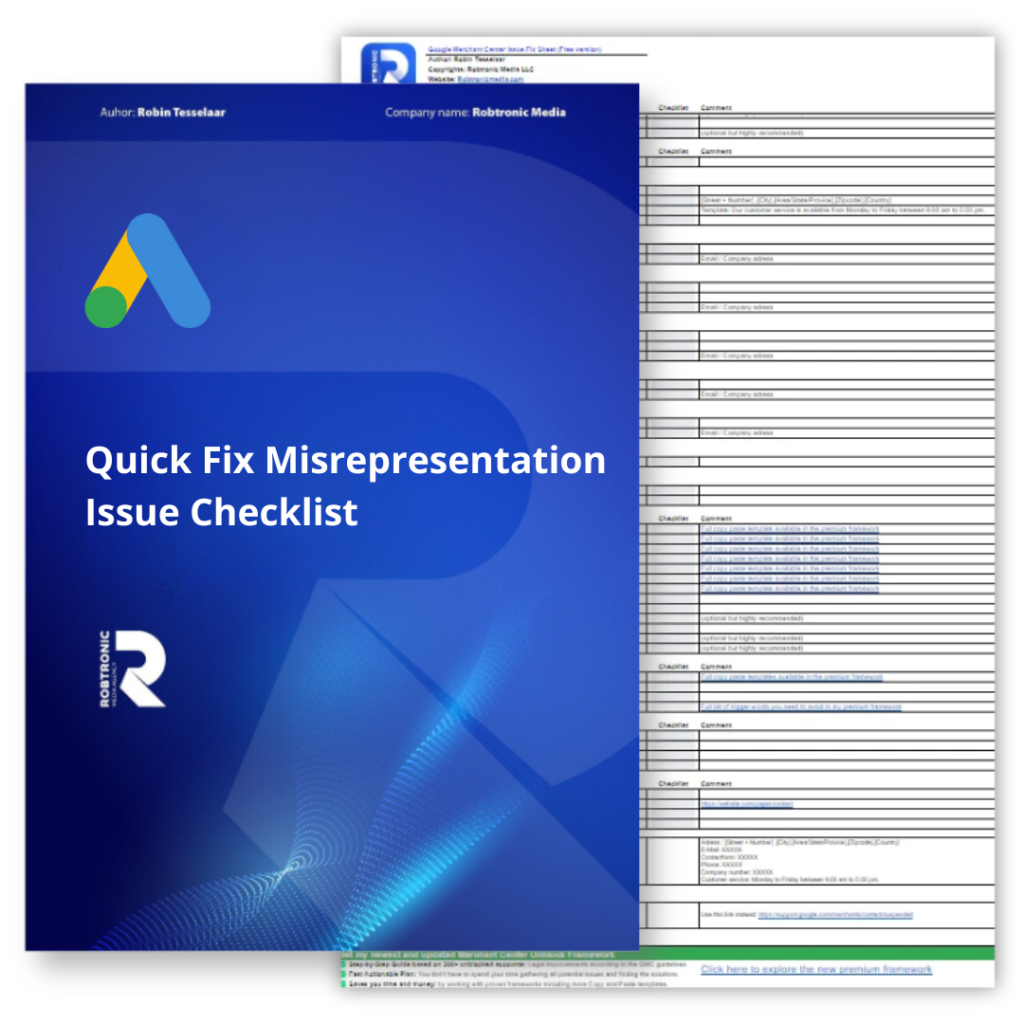
- If needed, fix website compliance using the checklist, then submit again.
The Old Fix Stopped Working for Many Stores
Before, store owners could request a review via support.google.com and explain what they changed. Sometimes that worked.
Today, that route often leads to automated replies or rejections. Google does not tell you the exact reason, and that makes it feel like you are guessing.
So instead of wasting review attempts, this guide focuses on the new strategy that is working best right now.
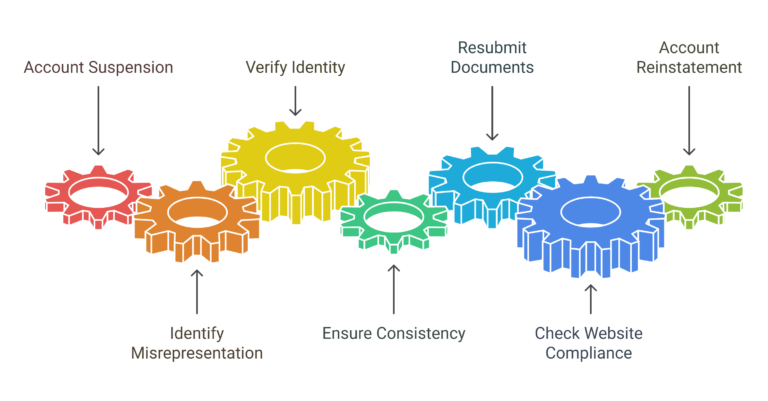
The New 2026 Strategy. Verify Your Identity Inside Merchant Center
This is the key change in the video.
Most of the time, you can fix the misrepresentation suspension faster by doing the identity verification step that appears inside Merchant Center.
Step by step workflow (same as the video)
- Log into your Merchant Center account
- If suspended, you’ll see a red banner. Click Fix or Fix issues
- Open the misrepresentation issue
- Click the identity verification link (ID check)
- Upload the required documents
- After submitting, click Disagree and request a new review
Documents you typically need
- A valid passport or government-issued ID
- A utility bill with your company address
- Your company registration details
Important. These details must match what is in:
- Merchant Center
- Google Ads account
- Payments profile
If they do not match, the verification can fail, even if the documents are real.
If you want a full step-by-step guide with more screenshots and checks, use:
Simple fix for the Google misrepresentation error (updated)
Why Every Detail Needs to Match Exactly
This is where most people get blocked.
Google cross-checks your info across platforms. A small mismatch can lead to rejection.
Common mismatch examples:
- Business name is different on the website vs Payments
- Address formatting differs across accounts
- Utility bill has a different company name than the ID submission
- Google Ads account uses different business info than Merchant Center
A safe approach is to standardize one “official version” of:
- Business name
- Address
- Registration details
- Support email and phone
Then copy that version everywhere.
Rejected Again? Here’s What to Do Next
If your verification fails, do not panic. It happens.
Do this:
- Check the rejection message and screenshot it
- Compare the submitted details against Merchant Center, Ads, and Payments
- Fix the mismatches
- Upload again
- Request review again only after the details match
In many cases, the second or third attempt works once the information is cleaned up.
Still Suspended After ID Verification? Then the Website Is Usually the Problem
If identity verification is done but the account is still suspended, your website is usually the next reason.
Google wants to see basic trust signals, fast.
That includes:
- Clear product information
- Easy-to-find returns and refund policies
- Clear shipping info and delivery times
- A real contact page
- A secure, working checkout
- Mobile-friendly pages that load well
This is why the video mentions a checklist. The website needs to look like a real business, not a store that hides details.