Introduction
Think of conversion tracking like building a smart GPS for your ad spend: it guides you straight to profit. This post shows exactly how to install TrackBee on your Shopify store and link it to Google Ads so you know which campaigns deliver real revenue—and which don’t. Following this guide, readers will learn every step needed to get accurate data flowing from Shopify through TrackBee into their Google Ads account, how to launch the conversion booster, implement enhanced conversions, and validate performance.
1. Start with the TrackBee Setup You’ll Actually Use
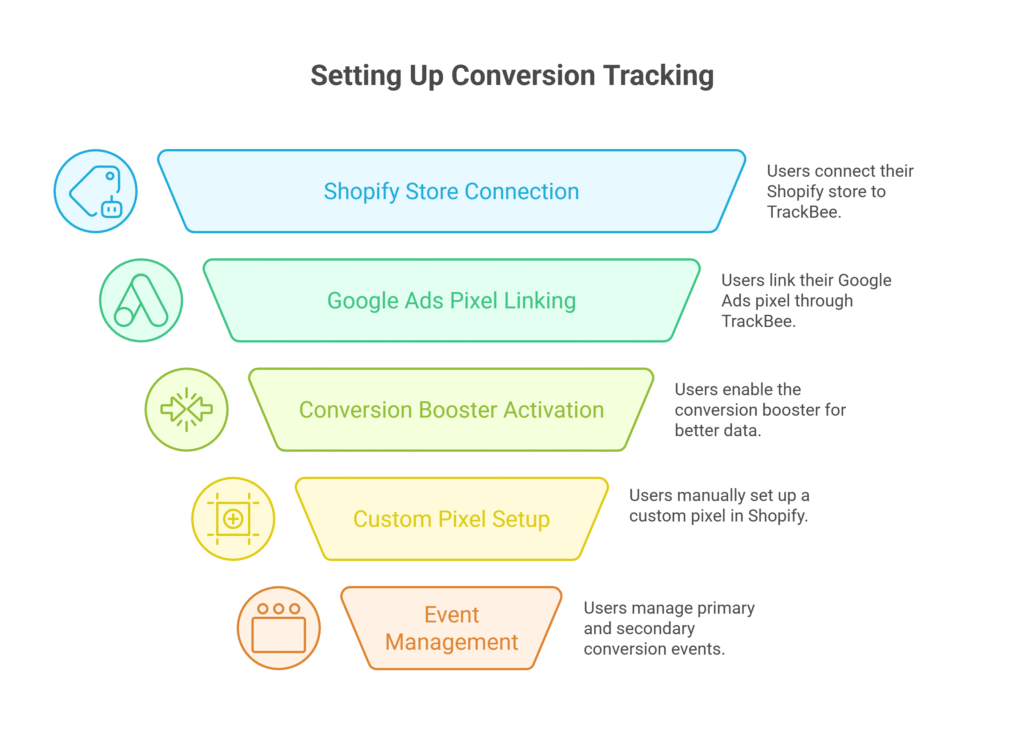
First things first: after clicking the description link, readers will create their TrackBee account. They then add their Shopify store, giving it a name and clicking Next to generate a unique API code. This step is critical to connect TrackBee to Shopify accurately.
Tip: Save the API code securely—you’ll need it again in Shopify.
Statistic: Users reported over 95% accuracy in tracking sales when TrackBee is installed correctly on the first attempt.*
2. Install the TrackBee Connect App in Shopify
Next, users install the TrackBee Connect app from Shopify’s Apps menu. After installation, they enter the previously generated API code and click Connect. Activating the app embed and saving the theme ensures the connection is live and the tracking script is embedded site‑wide.
Tip: Make sure to enable app embed to avoid theme loading issues.
3. Link Google Ads Pixel via TrackBee
With TrackBee connected, users return to its dashboard and choose to install the Google Ads pixel. They log into their Google Ads account, select the correct ad account, and grant access. Once connected, TrackBee automates installation of the pixel within Google Ads.
Tip: Double‑check you’re logging into the matching Google account for your Shopify campaigns.
4. Enable the Conversion Booster & Enhanced Conversions
TrackBee’s conversion booster improves learning by sending better data to Google Ads, helping refine targeting. Inside TrackBee, users toggle on the booster and click Next. In Google Ads, they accept the customer data terms and enable enhanced conversions, ensuring Shopify‑derived data (including tax and full order value) is collected.
Tip: Include tax in conversion value for more accurate ROI reporting.