Woke up to a Google Merchant Center suspension for misrepresentation.
No clear reason. No real help. And your Shopping ads just stopped.
This happens to new stores and big brands. Overnight.
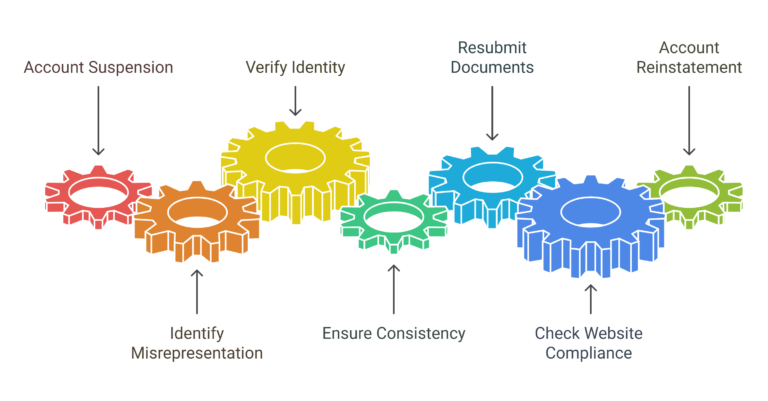
This page shows what to fix first. In the right order.
So you can request a re-review without guessing.
Start here (choose your fix)
Option 1. Free Checklist (best first step if you have time)
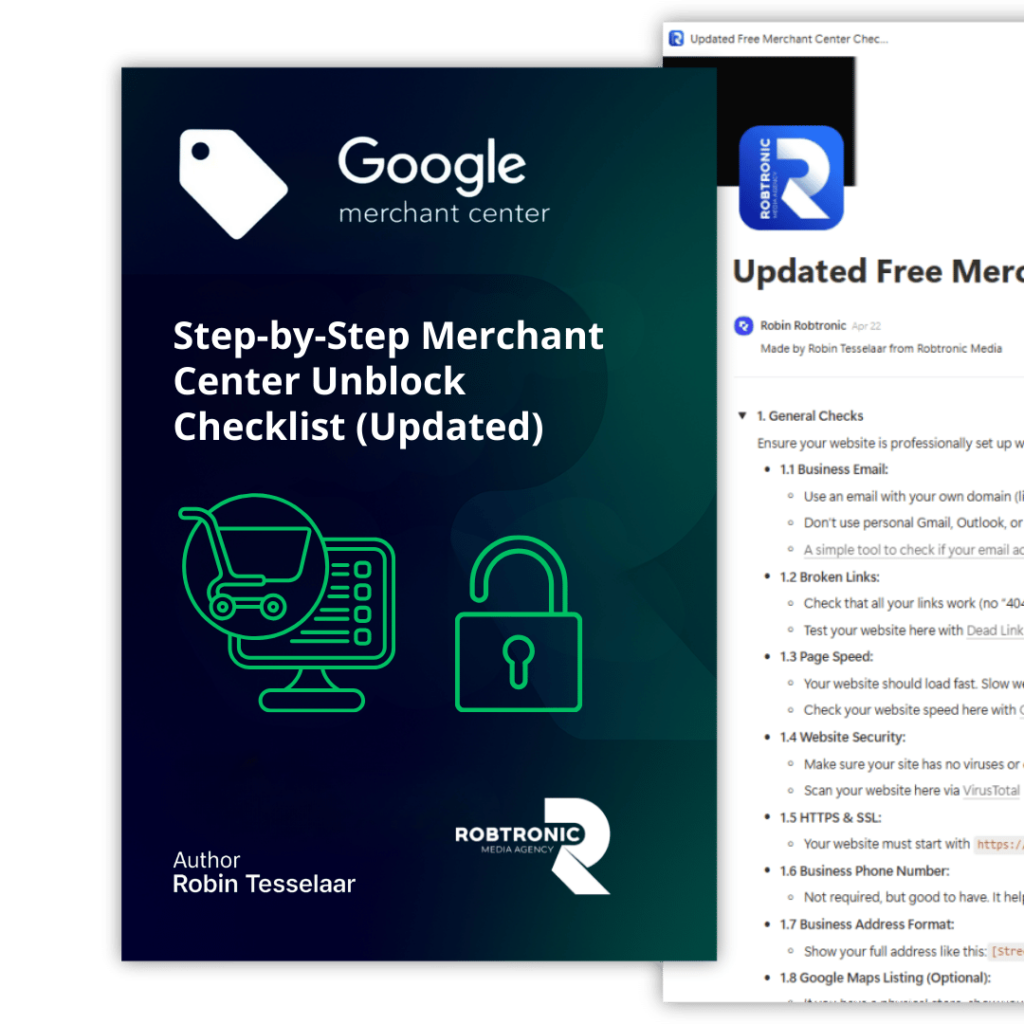
Get the full step-by-step list here: Free Misrepresentation Error Checklist
Option 2. Premium Unblock Framework (fastest path)
If you want the fastest fix with templates and less trial and error: Premium Merchant Center Unblock Framework
What premium gives you (high level):
- Copy-paste templates for key policy pages
- A clear “fix order” so you don’t waste days
- A re-review message template (what to write and what not to write)
- Extra checks many stores miss (without you digging for hours)
Direct answer: how to fix a Google Merchant Center misrepresentation suspension
If your Google Merchant Center account is suspended for misrepresentation, Google thinks shoppers may be misled by your store setup. Fix trust gaps first. Make contact info easy to find. Make returns and refunds clear. Make shipping info clear. Make sure checkout works and is secure (SSL). Then make your website details match your Merchant Center settings. After that, request a re-review and include a short change log.
Sources: https://support.google.com/merchants/answer/6150127?hl=en
Sources: https://support.google.com/merchants/answer/13693195?hl=en
Quick steps (do this in order)
- Do the 3-minute buyer trust test (below).
- Fix contact info and trust pages first.
- Fix broken links and dead buttons.
- Test checkout end to end.
- Secure checkout with SSL.
- Sync website details with Merchant Center.
- Request a re-review with a short change log.
Sources: https://support.google.com/merchants/answer/12756116?hl=en
Sources: https://support.google.com/merchants/answer/9158778?hl=en
What misrepresentation means: Google may suspend accounts that hide or misrepresent key business or product info.
What to do: Fix website trust signals, then request a re-review with a clear explanation.
Sources: https://support.google.com/merchants/answer/6150127?hl=en
Sources: https://support.google.com/merchants/answer/13693195?hl=en
1.1 Common mistakes that keep you suspended
- Contact info is missing or hard to find.
- Return policy is hidden behind login, signup, or personal info.
- Shipping info is vague, or does not match your settings.
- Checkout fails, or feels unsafe.
- Broken links in menu, footer, or buttons.
- You request a re-review before fixes are live.
Sources: https://support.google.com/merchants/answer/12756116?hl=en
Sources: https://support.google.com/merchants/answer/14011730?hl=en
Sources: https://support.google.com/merchants/answer/13693195?hl=en
1.2 Mini checklist (enough to spot the problem fast)
This is the short version.
The full step-by-step version is in the free checklist link above.
Want the templates + the re-review message you can copy and paste?
That is inside premium: https://robtronicmedia.com/sp/merchant-center-unblock-framework/
1.3 What “misrepresentation” means (Google Merchant Center misrepresentation policy)
Google does not want customers to feel misled. If Google finds violations of this policy, accounts can be suspended. If you believe there was an error, you can submit an appeal.
Sources: https://support.google.com/merchants/answer/6150127?hl=en
1.4 Google Merchant Center misrepresentation fix (step-by-step)
Step 1. Do the 3-minute buyer trust test
Open your site like a stranger.
Ask:
- Who are you?
- How do I contact you?
- When will my order arrive?
- What if I want to return?
- Can I pay safely?
If you can’t answer these fast, fix that first.
Step 2. Fix the “trust pages” first (header + footer)
Experience-based: reviewers click these first.
Make sure these pages exist and are easy to find:
- Contact
- Shipping
- Returns and refunds
- Privacy policy
- Payment info
- Track order (recommended)
- About (recommended)
Google says contact information should be clearly available. Examples include a contact form, social business profile link, email, or phone number.
Sources: https://support.google.com/merchants/answer/12756116?hl=en
Step 3. Fix broken links (your “misrepresentation checker” step)
A lot of “Google merchant center misrepresentation error” cases come down to basic site quality.
Experience-based: broken links can trigger trust issues fast.
Scan:
- header links
- footer links
- policy links
- product buttons
- track order button
Fix every 404. Then scan again.
This is also why “google misrepresentation checker” searches are so common. People want a quick tool to find what’s broken.
Step 4. Fix checkout and SSL
Google says checkout should be protected with a valid SSL certificate.
Sources: https://support.google.com/merchants/answer/9158778?hl=en
Google also says users must be able to add products to cart and fully complete checkout.
Sources: https://support.google.com/merchants/answer/12756116?hl=en
Step 5. Sync shipping and returns (website + Merchant Center)
Your website and Merchant Center must tell the same story.
Return policy rules and setup:
Sources: https://support.google.com/merchants/answer/14011730?hl=en
Shipping settings guidance:
Sources: https://support.google.com/merchants/answer/12577710?hl=en
Step 6. Verify and claim your website in Merchant Center
Google explains how to verify and claim your store website.
Sources: https://support.google.com/merchants/answer/11586344?hl=en
Step 7. Request a re-review (appeal) only after fixes are live
Fix first. Then request re-review.
Google also warns about a cool down if reviews keep failing.
Sources: https://support.google.com/merchants/answer/13693195?hl=en
Want the exact re-review message template?
It’s included in premium: https://robtronicmedia.com/sp/merchant-center-unblock-framework/